
Phone or Webcam for Desk Calls? Plan the Camera Position First
Content restored from the November 6, 2026 store snapshot. This browsing-only preview does not accept orders or payments.
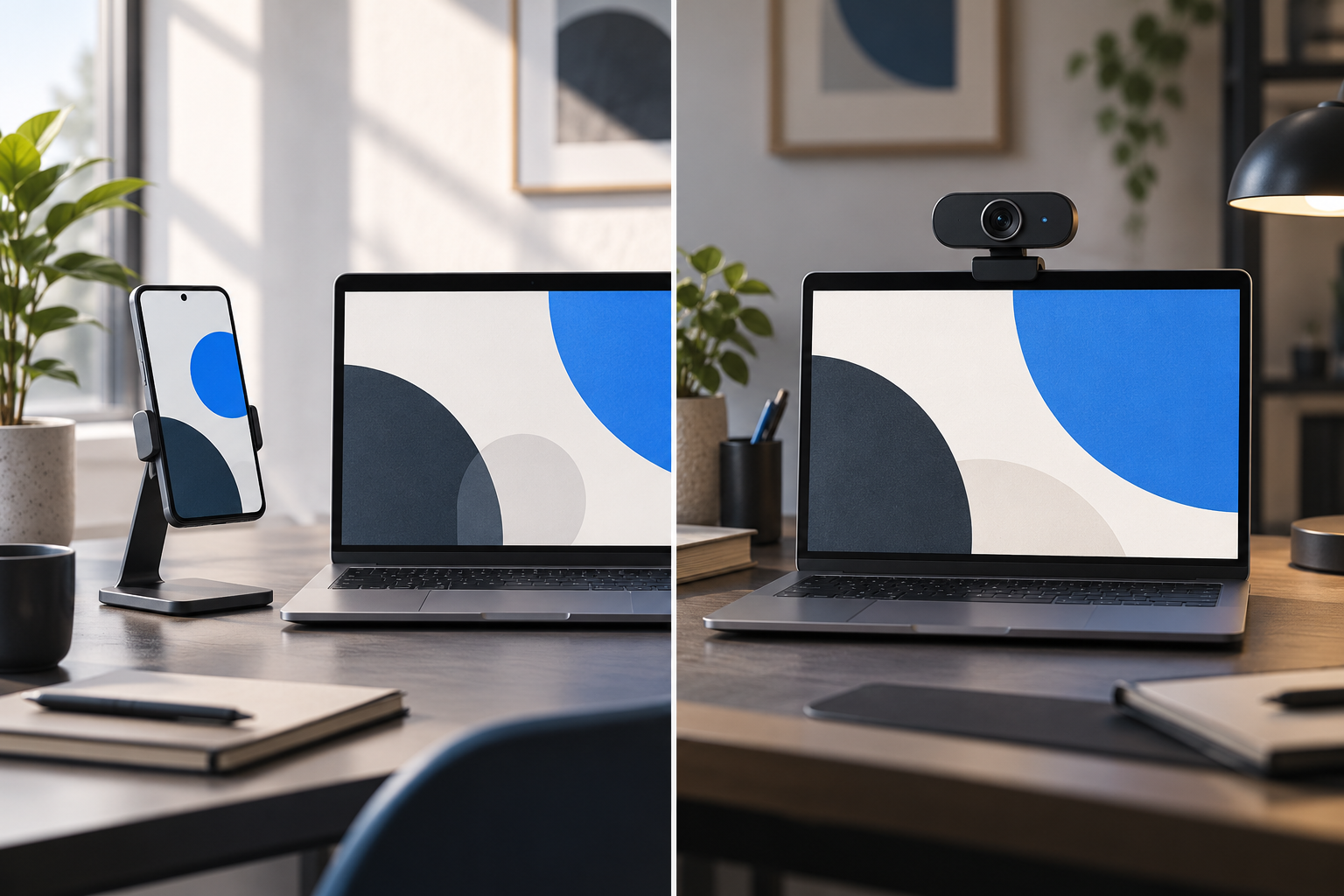
AI-generated editorial illustration; not a photograph of a specific DeskBoost product or an included bundle.
Start a desk-call setup with a preview test using the equipment you already have. Decide where the camera needs to sit, then check whether a supported phone or a compatible external webcam can use that position.
The problem may be simple: your laptop camera points from an awkward place, your phone keeps slipping, or a window dominates the background. Buying a higher-resolution device before testing the layout can leave the same problem in place.
Identify the call you need to support
Will you join directly from your phone, join from the computer, or use a phone as a camera for the computer? These are different workflows. The third requires compatible software and device support; a desktop phone stand alone does not create a phone-to-computer camera connection.
Also decide where you need to see the other person, notes and shared material. If the call runs on a phone but your reference material is on the laptop, test the position of both screens. You should be able to find the information you need without repeatedly lifting the camera device.
Run a preview before buying anything
- Open the actual calling application’s preview or test function.
- Place the laptop or phone on a stable surface in your normal working position.
- Check the visible frame, including background objects and private information.
- Try a different room position or light direction if the image is difficult to see.
- Test the microphone and speaker or headphones you intend to use.
Keep the camera securely supported throughout. Do not balance a device on an unstable stack to simulate a mounting height. If you make a test recording, keep it free of other people and confidential material and delete it when it has served its purpose.
When a phone stand is worth considering
A phone stand gives the device a defined place on the desk when you use the phone directly for calls or other supported tasks. Check the holder dimensions against the phone with its case attached, the orientation you want, and the room needed for a charging connection.
The DeskBoost Detachable Desktop Phone Stand lists Black and With Light Version as separate options. Do not assume the standard option includes the light. The listing advises confirming holder dimensions when needed and using a stable surface.
A built-in light is also not a guarantee of a particular image result. First decide whether your current lighting or device position can solve the issue, then ask for any essential specifications of the exact version.
When to compare an external webcam
An external webcam may be useful when the call runs on the computer but the built-in camera cannot occupy the position you want. Before ordering, confirm the required connection, operating-system or application support, and the mounting method for your chosen location.
DeskBoost’s 1080p Desk Webcam has Black and Black with bracket options. The bracket is a distinct package choice. Check what your mounting plan requires rather than assuming every version includes the same hardware.
The product’s listed resolution is 1080p. That number does not establish the resolution your call will transmit or the quality other participants will see. Software, lighting and connection conditions also affect the result. This guide does not claim a measured improvement over your existing camera.
Treat audio as a separate check
A better camera position does not automatically solve audio. Use the calling application’s test to confirm the selected microphone and speaker. If you connect a second device to the same meeting, follow the application’s instructions to avoid unintended duplicate audio paths.
Only add a separate microphone when you have identified an audio problem and confirmed compatibility with the device and application. Connector appearance alone is not enough to establish that a microphone will work in a particular call workflow.
Diagnose the issue without changing everything
| What you observe | First controlled check | What an accessory can and cannot answer |
|---|---|---|
| Phone will not stay in place | Check a stable support and intended orientation | A compatible stand addresses placement, not application support |
| Image is hard to see | Keep the camera fixed and compare another light direction | A different camera does not establish that lighting is fixed |
| Background shows private material | Inspect the preview and move the material out of frame | A stand or webcam does not provide privacy by itself |
| Computer camera cannot occupy the desired position | Check the feasible mount and cable route | A compatible external webcam adds a placement option |
| Sound is missing or duplicated | Check selected audio devices in the calling application | Buying a camera is not an audio diagnosis |
A repeatable five-check call test
Use the same application, usual seat and intended task while you compare one change at a time. Write a simple pass, fail or unknown against each check:
- Placement: the device is stable and its supports do not intrude into the space needed for work.
- Frame: the intended person or subject is visible and private material is outside the view.
- Visibility: the subject is visible in the actual application preview under the conditions when you normally call.
- Audio: the intended microphone and output are selected and the application’s test behaves as expected.
- Working task: you can use notes or share the intended material without picking up the camera device.
If a check fails, describe the observation rather than guessing the cause. “The phone moves when I connect the cable” is more useful than “I need a professional camera.” A compatible holder and sufficient cable room may address that specific placement problem. If software cannot access a device, confirm support before buying mounting equipment for it.
For illustration, someone who joins directly from a phone and reads a laptop document may need a stable phone position. Someone who must share a computer application should first verify their computer-call workflow. The same stand is not a complete solution to both requirements. These are planning examples, not tested performance claims.
For the surrounding workspace, see the small-desk laptop layout guide. Keep the call setup simple enough that you can restore it for the next meeting without rearranging the whole desk.
Prepared for DeskBoost with AI assistance. Product information checked against the DeskBoost catalogue on October 28, 2026. This is a planning guide, not a hands-on product test. Check the selected variant and any essential specifications before ordering.